A Registry Viewer in C#
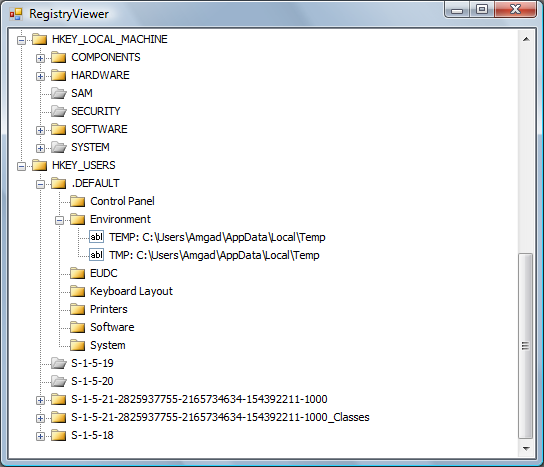
The Registry is a database in Windows that is available for application developers to use for storing small amounts of data. It is mostly used to save application setting like the window size and database connection string. In this series of post I will demonstrate how to create a simple registry editor in C#.
The Registry consists of 5 root keys. Each root key has sub keys that are organized in a CompanyName\SoftwareName\VersionNumber hierarchy. And in each sub key a value could be inserted with some data in it. The root keys and their .NET classes are:
- HKEY_CLASSES_ROOT (ClassesRoot)
- HKEY_CURRENT_CONFIG (CurrentConfig)
- HKEY_CURRENT_USER (CurrentUser)
- HKEY_LOCAL_MACHINE (LocalMachine)
- HKEY_USERS (Users)
The 2 classes needed to work with the Registry are Microsoft.Win32.RegistryKey and Microsoft.Win32.Registry, they could be used to manipulate most of the sub keys, but all of root keys are read only. The Microsoft.Win32.RegistryKey object is used to manage the sub keys, and the Microsoft.Win32.Registry is used to read the root keys. The following code reads the entire first and second level of the sub keys in all the root keys that are available to the current user:
private void ReadRegistry()
{
    //HKEY_CLASSES_ROOT
    TreeNode rootNode = new TreeNode(Registry.ClassesRoot.Name, 0, 1);
    string[] rootSubKeys = Registry.ClassesRoot.GetSubKeyNames();
    foreach (string key in rootSubKeys)
    {
        TreeNode node = new TreeNode(key, 0, 1);
        string[] subKeys = Registry.ClassesRoot.OpenSubKey(key).GetSubKeyNames();
        foreach (string subKeysKey in subKeys)
        {
            node.Nodes.Add(subKeysKey, subKeysKey, 0, 1);
        }

        rootNode.Nodes.Add(node);
    }
    registryTreeView.Nodes.Add(rootNode);


    //HKEY_CURRENT_CONFIG
    TreeNode configNode = new TreeNode(Registry.CurrentConfig.Name, 0, 1);
    string[] configSubKeys = Registry.CurrentConfig.GetSubKeyNames();
    foreach (string key in configSubKeys)
    {
        TreeNode node = new TreeNode(key, 0, 1);
        string[] subKeys =
            Registry.CurrentConfig.OpenSubKey(key).GetSubKeyNames();
        foreach (string subKeysKey in subKeys)
            node.Nodes.Add(subKeysKey, subKeysKey, 0, 1);

        configNode.Nodes.Add(node);
    }
    registryTreeView.Nodes.Add(configNode);


    //HKEY_CURRENT_USER
    TreeNode currentUserNode = new TreeNode(Registry.CurrentUser.Name, 0, 1);
    string[] currentUserSubKeys = Registry.CurrentUser.GetSubKeyNames();
    foreach (string key in currentUserSubKeys)
    {
        TreeNode node = new TreeNode(key, 0, 1);
        string[] subKeys = Registry.CurrentUser.OpenSubKey(key).GetSubKeyNames();
        foreach (string subKeysKey in subKeys)
            node.Nodes.Add(subKeysKey, subKeysKey, 0, 1);

        currentUserNode.Nodes.Add(node);
    }
    registryTreeView.Nodes.Add(currentUserNode);


    //HKEY_LOCAL_MACHINE
    TreeNode localMachineNode = new TreeNode(Registry.LocalMachine.Name);
    string[] localMachineSubKeys = Registry.LocalMachine.GetSubKeyNames();
    foreach (string key in localMachineSubKeys)
    {
        TreeNode node = new TreeNode(key, 0, 1);

        try
        {
            string[] subKeys =
                Registry.LocalMachine.OpenSubKey(key, false).GetSubKeyNames();
            foreach (string subKeysKey in subKeys)
                node.Nodes.Add(subKeysKey, subKeysKey, 0, 1);
        }
        catch (Exception)
        {
            //an exception is thrown if the user has no access to this subkey
            //if this is the case, change the icon to show a dimmed folder
            node.ImageIndex = 4;
            node.SelectedImageIndex = 5;
        }

        localMachineNode.Nodes.Add(node);
    }
    registryTreeView.Nodes.Add(localMachineNode);


    //HKEY_USERS
    TreeNode usersNode = new TreeNode(Registry.Users.Name);
    string[] usersSubKeys = Registry.Users.GetSubKeyNames();
    foreach (string key in usersSubKeys)
    {
        TreeNode node = new TreeNode(key, 0, 1);

        try
        {
            string[] subKeys = Registry.Users.OpenSubKey(key).GetSubKeyNames();
            foreach (string subKeysKey in subKeys)
                node.Nodes.Add(subKeysKey, subKeysKey, 0, 1);
        }
        catch (Exception)
        {
            //an exception is thrown if the user has no access to this subkey
            //if this is the case, change the icon to show a dimmed folder
            node.ImageIndex = 4;
            node.SelectedImageIndex = 5;
        }

        usersNode.Nodes.Add(node);
    }
    registryTreeView.Nodes.Add(usersNode);
}
The fastest way to read the values and data in a sub key is to use the GetValueNames and GetValue methods of the RegistyKey object. The GetValuesAndData function below takes 2 arguments, a RegistryKey object and a TreeNode object. It fills the TreeNode object with values in the RegistryKey object in a 'Value: Data' format. The data is also truncated if it is greater than 50 characters.
The array of strings called values is set to the list of Registry values in the sub key, and a foreach loops through these values. In each iteration of the loop the data of the current value is retrieved using the GetValue function of the RegistryKey object.
private static void GetValuesAndData(RegistryKey registryKey,  TreeNode node)
{
    string[] values = registryKey.GetValueNames();
    foreach (string value in values)
    {
        object data = registryKey.GetValue(value);

        if (data != null)
        {
            string stringData = data.ToString();

            //if the data is too long, display the begining only
            if (stringData.Length > 50)
                stringData = stringData.Substring(0, 46) + " ...";

            //Display the data of the value. The conditional operatore is
            //needed because the default value has no name
            node.Nodes.Add(value, (value == "" ? "Default" : value) +
                ": " + stringData, 2, 2);
        }
        else
        {
            //Display <empty> if the value is empty
            node.Nodes.Add(value, (value == "" ? "Default" : value) +
                ": <empty>", 2, 2);
        }
    }
}
Also be sure to check out the free and open source SMARegisTry Backup by Eric Arnol-Martin. It uses this code to backup selective registry keys.